Connect your assistant
Add Obvs to the AI assistant you already use. It takes about two minutes, once.
You need your Obvs account (the email and password you chose when you signed up). Pick your assistant:
Works on claude.ai, the Claude desktop app, and the Claude app on your phone. You add Obvs once; it then works everywhere you use Claude with the same account.
On a computer
Open Settings → Connectors
In Claude (claude.ai in your browser, or the desktop app), click your name at the bottom left, then Settings, then Connectors.
Let Claude use tools and data from other apps.
Add custom connectorAdd Obvs as a custom connector
Click Add custom connector. Name: Obvs. Address (URL): https://obvs.health/mcp. Click Add, then Connect next to Obvs.
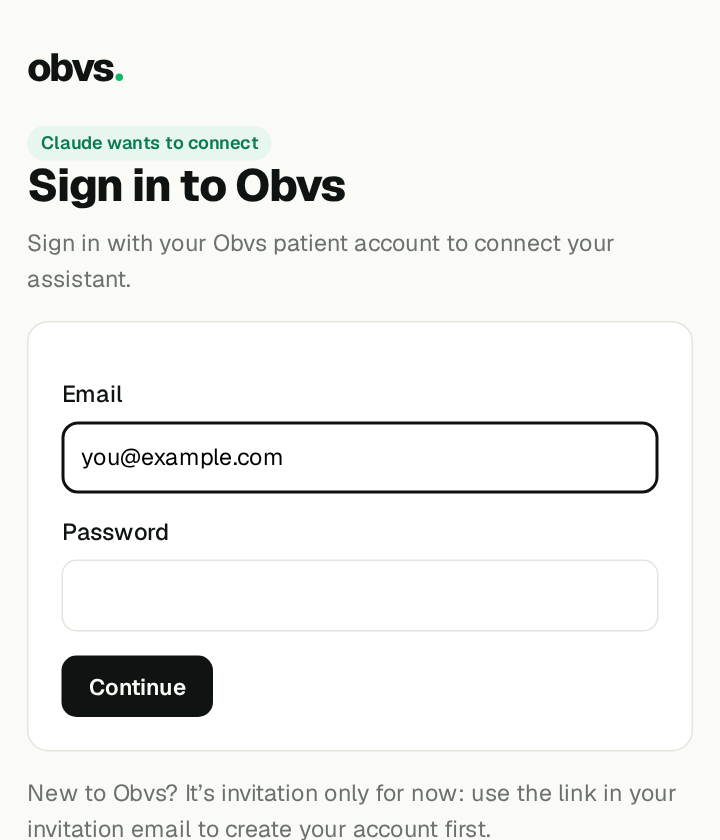
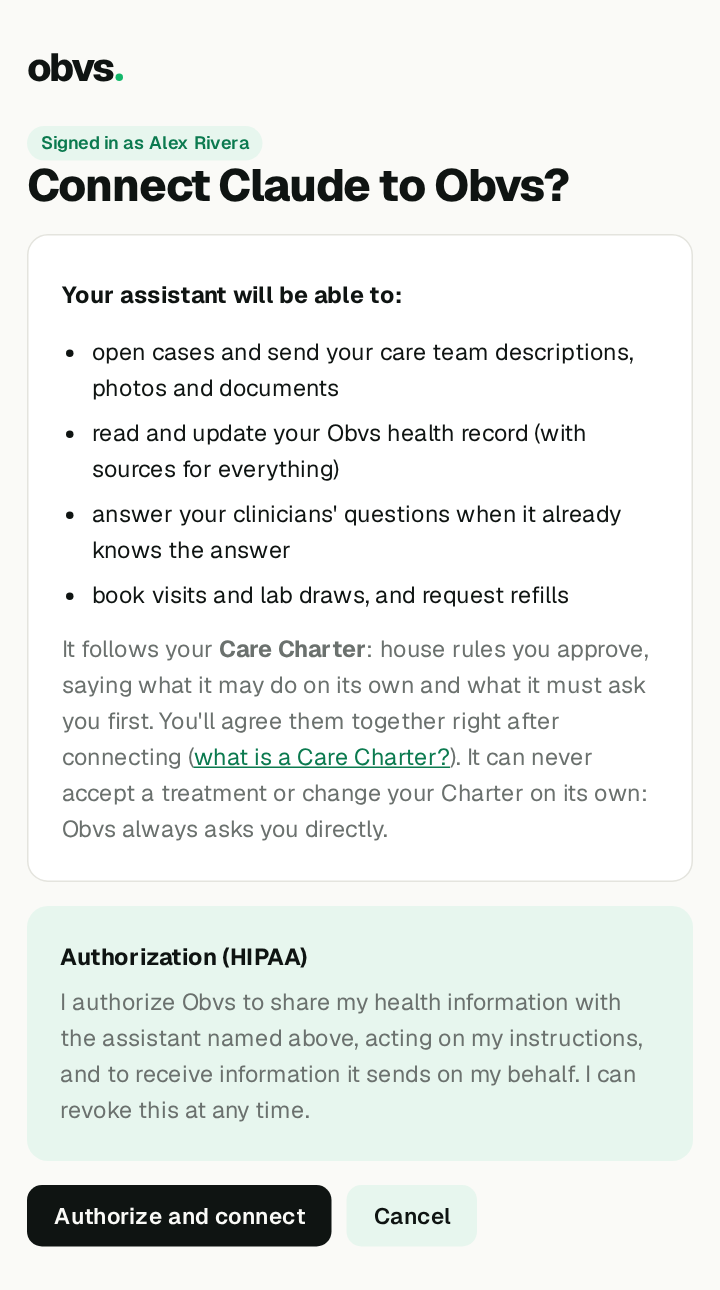
Sign in to Obvs and authorize
A page from Obvs opens. Sign in with the email and password of your Obvs account, then press Authorize and connect. This lets Claude work with Obvs for you; you can disconnect it any time.
Say “Set me up with Obvs”
Start a new chat, type it and send. Obvs is ready to use as soon as it’s connected. Your assistant welcomes you and agrees a few house rules with you, your Care Charter. Obvs then sends you a link to approve them.
On your phone
Add Obvs once on a computer
Follow the steps above on claude.ai or the desktop app. No computer? Open claude.ai in your phone’s browser, sign in, and follow the same steps from Settings.
Open the Claude app
Use the same Claude account. Obvs appears in the app automatically.
Say “Set me up with Obvs”
In a new chat, type it or say it out loud with the microphone. Your assistant welcomes you and agrees a few house rules with you, your Care Charter. Obvs then sends you a link to approve them.
Don’t see Add custom connector? Custom connectors depend on your Claude plan; check the plans page in Claude’s settings.
Works on chatgpt.com and the ChatGPT apps. You add Obvs once on the web; it then works in the apps with the same account. Adding your own connectors needs a ChatGPT plan that includes them.
On a computer
Turn on developer mode
On chatgpt.com, click your name, then Settings → Apps & Connectors → Advanced settings, and switch on Developer mode. (It lets you add a connector that isn’t in the store yet.)
Create the Obvs connector
Back in Apps & Connectors, click Create. Name: Obvs. MCP server URL: https://obvs.health/mcp. Authentication: OAuth. Tick that you trust it, then Create.
Sign in to Obvs and authorize
A page from Obvs opens. Sign in with the email and password of your Obvs account, then press Authorize and connect. This lets ChatGPT work with Obvs for you; you can disconnect it any time.
Say “Set me up with Obvs”
Start a new chat, type it and send. Obvs is ready to use as soon as it’s connected. Your assistant welcomes you and agrees a few house rules with you, your Care Charter. Obvs then sends you a link to approve them.
On your phone
Add Obvs once on chatgpt.com
Follow the steps above on a computer, or on chatgpt.com in your phone’s browser.
Open the ChatGPT app
Use the same account. Obvs is already there.
Say “Set me up with Obvs”
In a new chat, type it or say it out loud. Your assistant welcomes you and agrees a few house rules with you, your Care Charter. Obvs then sends you a link to approve them.
Any assistant that supports MCP connectors with sign-in (OAuth) can use Obvs with the same address.
Claude Code
claude mcp add --transport http obvs https://obvs.health/mcp
Then run /mcp, choose obvs → Authenticate.
Clients without remote connectors
Use the mcp-remote bridge, e.g. in claude_desktop_config.json:
{
  "mcpServers": {
    "obvs": {
      "command": "npx",
      "args": [
        "-y",
        "mcp-remote",
        "https://obvs.health/mcp"
      ]
    }
  }
}
Obvs skill (optional)
Assistants get the full Obvs how-to from the connector itself (the obvs_guide tool), so nothing else is needed. If your assistant supports skills, the same guide is available as one: download obvs-skill.zip. Claude Code: unzip it into ~/.claude/skills/. Claude apps: upload the zip where your plan offers custom skills (Settings → Capabilities).
Something not working?
I can’t find where to add a connector
Menus move between app versions. Look for Connectors (Claude) or Apps & Connectors (ChatGPT) in Settings. Adding your own connector may need a paid plan.
The Obvs sign-in doesn’t accept my password
Use the email your invitation was sent to and the password you chose when you finished signing up. You can test it at My Obvs.
My assistant doesn’t seem to use Obvs
Say “use Obvs” in your message. If it still doesn’t, check that Obvs shows as connected in Settings, and that it isn’t switched off in the chat’s tools or + menu.
I want to disconnect
Remove Obvs from your assistant’s connectors. Your Obvs record stays yours.
Then say: “Set me up with Obvs.”
See what happens next, and what you can ask, in Getting started.